Showing posts with label BC. Show all posts

Friday, 16 September 2022

README.md (Markdown) file in AL Code for writing your version control or project definition details

 Sometimes it can be easy if put all the information in one place related what we changed in our AL extension specially when there are multiple developers are working together,

use of Markdown file.

Is it best idea?

Yes, unlike a documentation trigger of each object, I would say this is the file README.md can be your whole Project's documentation trigger 👀 Called MarkDown

How to use it?

Just visit your AL code, create a new file and name it with a README.md.

see below 👇


  • 2nd


  • 3rd interesting part > Write your own documentation 👲
Start writing your version control or anything else here we go, and then click on Right hand corner button (Open Preview)


See how it looks like :


We have some cool features and market extension
Use me to check those out


Enjoy 👦👦👦

Monday, 11 April 2022

OAuth2.0 Token authentication with AL code for Business central

 OAuth2.0 Token authentication with AL code for Business central - Part 2

In our last video (Part 1) we have been gone through the Token authentication using Postman, App registration with Azure portal, in this part I am showing how we can generate the token and authentication with web api using AL code.


Thursday, 7 April 2022

BC OAuth2 0 Token Based Authentication

BC OAuth2 0 Token Based Authentication (Part -1)

About OAuth

OAuth is an open standard for authorizing access to web services and APIs from native clients and websites in Azure Active Directory (Azure AD). In Business Central, OAuth is useful when your deployment is configured for Azure Active Directory authentication, either through your own Azure subscription or a Microsoft 365 subscription. OAuth lets users sign in to Business Central web services using their Microsoft 365 or Azure AD credentials. Otherwise, they would have to use their Business Central account credentials (user name and password or web access key).

Part 2 - (oAuth2.0 validation through AL Code)

Steps to be followed


Thursday, 10 March 2022

Business Central 2021 release wave 2 - Preview Environments.

Business Central 2021 release wave 2 - Preview Environments.


Preview environments are Business Central online sandbox environments that you create on a preview version of the application. When you create the new sandbox environment, choose the preview version marked as (Preview) from the version list. This way, you get a new sandbox environment with a preview version of the application

The newly created preview sandbox environment contains demonstration company data. Trying the preview on a copy of your current production data is not yet supported; nor is testing the upgrade from your current version to the preview. However, you can use the newly created sandbox environment for exploring and learning the new product capabilities. You can also use the preview environment to validate that any per-tenant extensions are still working as expected.


Note: You will be able to test the update on a copy of your production data in a sandbox environment when we release the new update in production in April or October, respectively. When the official release becomes available, you can continue your tests on that version. You will no longer be able to create new preview sandboxes.

 Important

The preview version as well as all sandbox environments that are based on it will be removed 30 days after the official release becomes available.

The following figure illustrates the suggested steps for getting a preview of a major update with example dates for the two release waves in any given calendar year.


Thursday, 3 February 2022

Using Snapshot Debugger in Business Central Production Envionment

 Snapshot Debugger in Business Central  Production Environment

Snapshot debugging allows recording AL code that runs on the server, and once it has run, debug the recorded snapshot in Visual Studio Code. To create and download a snapshot file that exists on the server on behalf of an end-user, the user must be part of the D365 Snapshot Debug permission set. For more information, see Assign Permissions to Users and Groups. One of the advantages of snapshot debugging is that it provides the ability to inspect code execution and variables in the production environment in a cloud service, on a specified user session.

Snapshot debugging introduces the concept of snappoints. A snappoint is a breakpoint in Visual Studio Code that is set when creating a snapshot, they do not, however, stop execution of code like when using regular debugging. Snappoints instruct execution to log the state at the breakpoint for later offline inspection. Snapshot debugging will record AL code as it runs on the server, but will only collect variable information on:


Snappoints

AL exceptions


Ref. : Dynamics 365 Business Central: using snapshot debugging – Stefano Demiliani


Video Link : BC Snapshot Debugger


Monday, 1 November 2021

Generate QR code in Business Central using Third party Webservice link

AL Code as per below

Create New Report with having barcode image.


In RDL design add image type control and put the barcod2 variable into that like we do normally for Picture control.


report 50999 QRCodeList
{
    Caption = 'QRCode List Report';
    UsageCategory = Administration;
    ApplicationArea = All;
    DefaultLayout = RDLC;
    RDLCLayout = '.\Report\QRCodeList.rdl';
    dataset
    {
        dataitem("Sales Header"; "Sales Header")
        {
            column(No_; "No.")
            {

            }
            column(temp; barcode2)
            {

            }
            trigger OnAfterGetRecord()
            begin                
                barcode2 := InitArguments("No.");
            end;
        }
    }


Global Variable

  var
        BarCode2: text;


local procedure InitArguments(ItemNo: text): text
    var
        BaseURL: Text;
        Base64Convert: Codeunit "Base64 Convert";
        TempBlob: Codeunit "Temp Blob";
        TypeHelper: Codeunit "Type Helper";
        client: HttpClient;
        response: HttpResponseMessage;
        InStr: InStream;

    begin
        client.get('https://barcode.tec-it.com/barcode.ashx?data=' + itemno + '&code=QRCode', response);
        TempBlob.CreateInStream(InStr);
        response.Content().ReadAs(InStr);
        BarCode2 := Base64Convert.ToBase64(InStr);
        exit(BarCode2);
    end;


Run the report in BC and see the output, it will give you a QR Code as image.


Sunday, 19 September 2021

Convert each word's first letter in Capital

 Convert each word's first letter in Capital

Below is the code

Name DataType Subtype Length

nametext Text

newtext Text

ucase Text

textlen Integer

Convertext Text


nametext := 'first letter of this line going to be converted in Capital.';

WHILE STRPOS(nametext,' ') <> 0 DO BEGIN

  newtext := UPPERCASE(COPYSTR(COPYSTR(nametext,1,STRPOS(nametext,' ')-1),1,1));

  newtext += LOWERCASE(COPYSTR(nametext,2,STRPOS(nametext,' ')-2)) + ' ';

  Convertext += newtext;

  textlen := STRLEN(newtext);

  nametext := DELSTR(nametext,1,textlen);

END;

ucase := UPPERCASE(COPYSTR(nametext,1,1));

ucase += LOWERCASE(COPYSTR(nametext,2,STRLEN(nametext)));

MESSAGE(Convertext+ucase);


Monday, 12 July 2021

Create vCard QR Codes using Azure Functions

Create vCard QR Codes using Azure Functions

 QR Code Generation in BC with Azure functions


Source : https://carlos.mendible.com/2016/08/28/create-vcard-qr-codes-using-azure-functions/


1. Create a Function App


Head to portal.azure.com and hit the New button. Search for Function App and create one. You’ll be asked for an app name, resource group, app service plan and storage account where the code will live.

2. Create the function


Create a new Function, selecting the empty C# template and give it a name: (i.e QRCoder)

3. Add the code


Replace the contents of the Code (run.csx) section with the following code and save it:

Monday, 28 June 2021

AL publishing error " Either the parameter @objname is ambiguous or the claimed @objtype (COLUMN) is wrong."

Sometimes if need to remove columns or fields from Table and try to compile and publish the AL extension again we face below error.


Error


 Either the parameter @objname is ambiguous or the claimed @objtype (COLUMN) is wrong.


Why it happens?


The object metadata in Sql sever could be different from that of your object.

sometime SQL does not recognize the columns or sync same time


What is the solution?


Try to put below parameter in launch.json in your AL extension file.


Hope it help and let me know for more details if we can add it here.


Tuesday, 18 May 2021

Using Microsoft Translations in VS AL Code


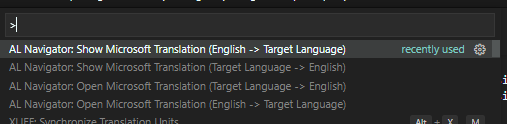
SHOW MICROSOFT TRANSLATIONS IN VS CODE

his post is especially interesting for the people whose native language is not English. Do you know the feeling? You are looking at the source code of some .al object and you come across a field name that means absolutely nothing to you. It would be helpful for you if you could see the translation of this field name into your native language. Often this is already sufficient. In the old C/SIDE client we had the field “Caption” in the table designer to see the translation.


AL Navigator: Open/Show Microsoft Translation


Tuesday, 4 May 2021

Creating a Business Central Incoming document with attachment via BC Webservice.

Creating a Business Central Incoming document with attachment via BC Webservice.

Hey guys...

Today I am trying to create an incoming document in business central with the attached file of an extension like .pdf or .docx file, via publishing one codeunit webservice and consumed by other software or powerautomate.

Below are some steps to be followed

1. Create BC codeunit webservice with custom method in it and publish it

2. Consume this webservice via power automate and generate JSON object text

3. supply JSON object as text in the codeunit method.

4. Process the JSON object and start creating incoming document.


document:text will have a JSON text in the body as a parameter I am here also pasting my JSON objects with the proper format and the result what I am getting after using POST method as per below


Result:

Note: Please make sure header part should have parameter as mentioned below, if you are trying wizdler to use POST method, no need to use this method as wizdler(WSDL) automatically format.

Download Wizdler here for chrome extension.
Download Postman here.


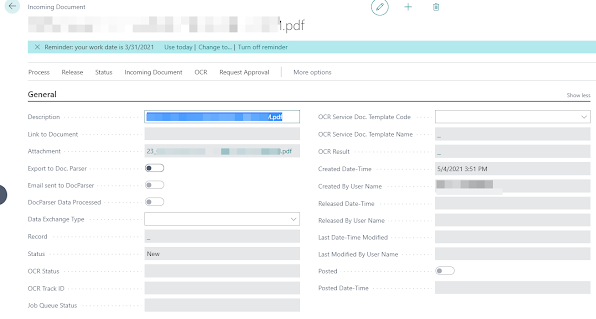
After processing above I am getting my incoming document created as per below screenshot.


Extension Unpublished/Uninstalled history required in BC Production environment

  There is a situation when someone can uninstall or unpublish any APP extension from the extension management in Production environment, th...